How to Add a Searchable Database Table to Your WordPress Website
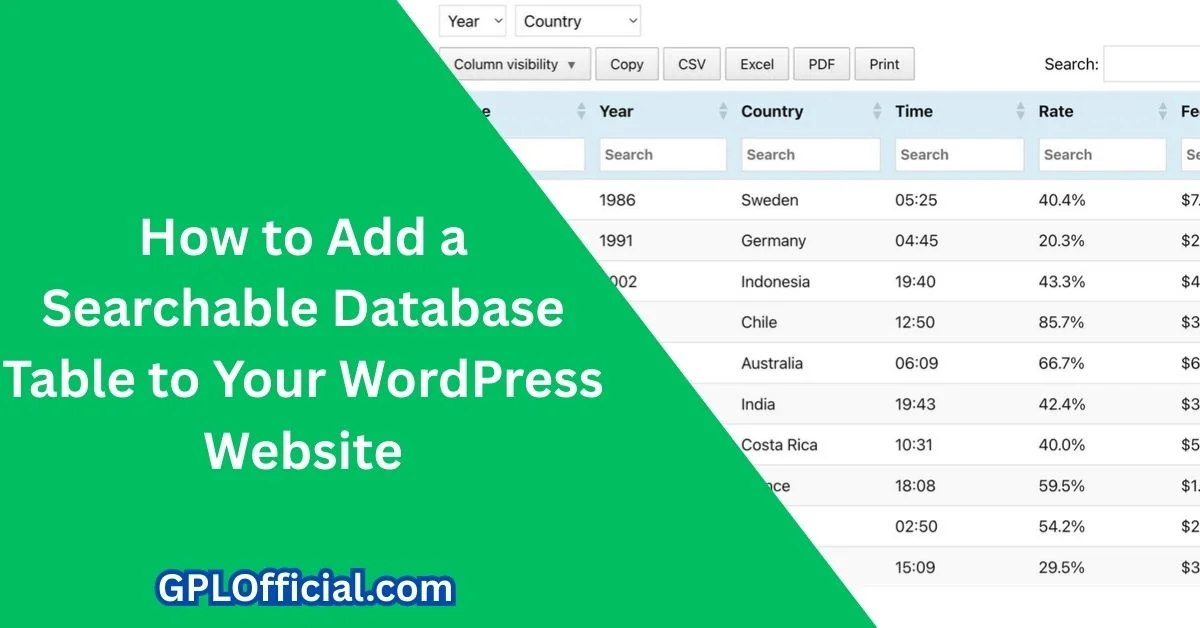
A searchable, sortable data table — with pagination, column sorting, and a built-in search box — is something the default WordPress table block simply can’t do on its own. TablePress is the most established free plugin for this, and here’s a complete walkthrough of setting one up, from creating your first table to importing data from a CSV file.
The Short Version
- The native WordPress table block can’t sort, search, or paginate — TablePress adds all three for free
- Tables are added anywhere via a simple shortcode, working with Gutenberg, Elementor, or any other page builder
- Data can be imported from CSV, Excel, HTML, or JSON files, or entered manually
- Tables can be exported the same way, making it easy to move data between sites
- Best fit: pricing comparison tables, staff directories, product specification tables, or any dataset visitors need to search or sort
Step 1: Install TablePress
Go to Plugins → Add New, search for “TablePress,” and install and activate the free version. A premium tier exists with more advanced features (like editable front-end tables), but the free version covers sorting, searching, and pagination — the core features most sites actually need.
Step 2: Create Your First Table
- Go to TablePress → Add New Table
- Give the table a name, and optionally a description that displays beneath it
- Set your starting number of rows and columns (you can add or remove more later)
- Click “Add Table” to open the spreadsheet-style editor
- Fill in your header row, then add your data row by row — use the row/column controls to add or delete as needed, including selecting multiple rows at once with Shift-click
Step 3: Configure Sorting, Search, and Pagination
Below the table editor, TablePress gives you several display options worth reviewing before publishing:
- Table header/footer rows — mark the first row as a header and, optionally, the last row as a footer
- Alternating row colors — a checkerboard striping pattern that makes wide tables easier to scan
- Row hover highlighting — highlights the row a visitor’s cursor is over
- Sorting — lets visitors click a column header to sort ascending or descending
- Search box — adds a live search field above the table
- Pagination — set how many rows display per page (10 is a common default) before the table breaks into pages
- Horizontal scrolling — useful for wide tables with many columns on mobile screens
Click “Save Changes” once you’re happy with the configuration.
Step 4: Add the Table to a Page
Every TablePress table comes with a unique shortcode (like [table id=1 /]) shown at the top of the table’s edit screen. This shortcode works identically across page builders:
- Gutenberg: add a Shortcode block (or the dedicated “TablePress table” block) and paste the shortcode, or paste it directly into a paragraph block
- Elementor: drag in a Shortcode widget and paste the same code
- Any other builder: as long as it supports a shortcode or raw HTML widget, the table will render correctly
Step 5: Import Data From CSV or Other Sources
Rather than typing data manually, TablePress can import from several sources under TablePress → Import a Table:
- CSV file — the most common option, works with any spreadsheet exported from Excel or Google Sheets
- File upload, URL, or direct paste — import from an uploaded file, a hosted file’s URL, or by pasting the raw table code directly
- Zip file — import several tables at once
- Import mode — choose whether the imported data creates a new table, replaces an existing one, or appends rows to an existing table
Step 6: Exporting Tables
Under TablePress → Export, you can export any table (or all of them at once as a zip file) in CSV, HTML, or JSON format — useful for backing up your data or moving tables between sites.
A Realistic Example
A directory site listing WordPress hosting providers by price, uptime guarantee, and support quality is a strong use case — visitors can sort by price to find the cheapest option, or search for a specific provider by name, rather than scrolling through a long static list.
TablePress vs. Alternatives
- wpDataTables — a premium-first plugin with more advanced features out of the box (charts, conditional formatting), but the free tier is far more limited than TablePress’s genuinely usable free version. Worth it if you need built-in charting; overkill for a simple searchable list.
- Ninja Tables — a solid free tier with a more modern visual builder interface, popular for pulling in dynamic data sources. Slightly steeper learning curve than TablePress’s more straightforward spreadsheet-style editor.
- A raw HTML table — fine for a tiny, static table (under 10 rows) that never needs search or sorting, but becomes unmanageable and lacks any search/filter functionality once the data grows.
For most WordPress sites needing a searchable table without a steep learning curve or forced upgrade, TablePress remains the practical default — its free tier genuinely covers search, sort, and pagination, which is exactly what most “browse this list” use cases need.
Common Use Cases
- Resource or tool directories — a searchable list of recommended tools, plugins, or services with columns for name, category, and price.
- Pricing comparison tables — feature-by-feature comparisons across plans or competing products, sortable by price or feature count.
- Staff or team directories — searchable by name, department, or location for larger organizations.
- Product specification sheets — technical specs that benefit from column sorting more than a static image-based spec chart would.
Keeping a Large Table Manageable Long-Term
A table that starts small tends to grow, and a few habits keep it from becoming unmanageable as it does:
- Keep a master copy of the data in a spreadsheet outside WordPress, and re-import via CSV for bulk updates rather than manually editing dozens of rows one at a time inside the TablePress interface.
- Use consistent formatting in every row from the start — mixed date formats or inconsistent capitalization in a searchable column make search and sort behave unpredictably for visitors.
- Periodically audit for outdated rows (discontinued products, expired listings) rather than letting the table silently accumulate stale entries that hurt its usefulness.
Can visitors export or download the table data themselves?
TablePress includes optional export buttons (CSV, PDF, print) that can be enabled per table in the front-end display settings, letting visitors download the data themselves if that is useful for your use case. This is off by default and worth turning on deliberately, since not every table should be freely downloadable depending on the content.
Does this work well with WordPress multisite?
TablePress supports multisite installs, with each site in the network maintaining its own separate set of tables by default rather than sharing a single global table list. If cross-site table sharing is needed, that requires additional custom configuration beyond the plugin’s default behavior.
Will search engines index the content inside a TablePress table?
Yes — TablePress renders as standard HTML table markup in the page source, so search engine crawlers read the table content the same as any other on-page text. This makes it a reasonable choice when you want tabular data to be findable via search, unlike a table rendered as an image, which crawlers cannot read as text at all.
If your table needs go beyond what TablePress covers — custom queries, embedding PHP logic directly, or connecting to an external data source — our guide on when and how to embed PHP in HTML walks through the lower-level approach. And if visitors need to find specific rows by voice rather than typing, see our guide on adding voice search to WordPress.
Frequently Asked Questions
Do I need the premium version of TablePress?
Not for sorting, searching, or pagination — those are all included free. Premium adds features like letting visitors edit table data directly on the front end, which most sites don’t need.
Will a large table slow down my page?
Pagination helps significantly here — displaying 10–20 rows per page instead of rendering hundreds of rows at once keeps the page lightweight regardless of your total dataset size.
Can I style the table to match my site’s design?
Yes — TablePress supports adding a custom CSS class per table, which you can target with your own CSS to control colors, fonts, and spacing beyond the built-in striping and hover options.
Can the same table appear on multiple pages?
Yes — the same shortcode can be pasted on as many pages as you want, and editing the table once updates it everywhere it’s used.
What file formats can I import?
CSV is the most common, but TablePress also accepts direct file uploads, imports from a URL, and manual paste of table code, plus bulk import of multiple tables via a zip file.
The Bottom Line
TablePress fills a real gap the default WordPress table block leaves open — sorting, search, and pagination — entirely for free, and works identically across every major page builder through its shortcode system. For most sites, the free version is genuinely all you’ll need.


