How to Fix Broken Links in WordPress: Complete Guide
Broken links quietly damage both SEO and user trust — a visitor who clicks a dead link and lands on a 404 page often just leaves, and Google notices when your site accumulates them. Here’s a complete, practical guide to finding and fixing broken links in WordPress, from a single dead link to a full site-wide cleanup.
The Short Version
- Find broken links first with a scanner plugin — don’t guess where they are
- Always use a 301 (permanent) redirect for a page that’s genuinely gone, never a 302
- Redirect to the closest relevant replacement page — never blanket-redirect everything to your homepage
- For a handful of broken links, fix them manually through a plugin’s dashboard
- For bulk fixes (like after a URL structure change), a redirect plugin or WP-CLI search-replace is far faster than fixing links one by one
Step 1: Find Your Broken Links
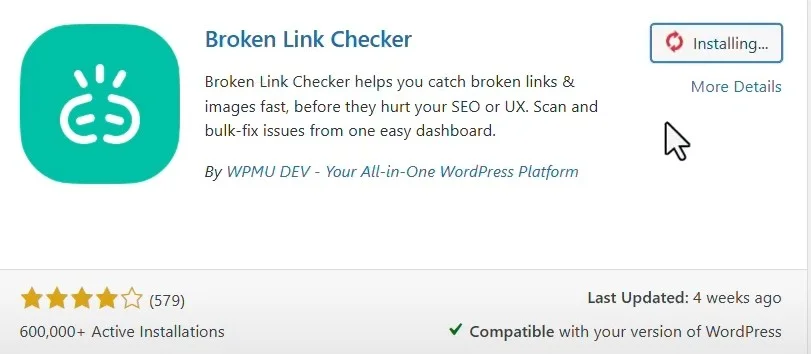
You can’t fix what you haven’t found. A dedicated scanner plugin crawls your site’s internal and external links and flags anything returning a 404 or other error. We’ve covered a specific option in detail in our Broken Link Checker by WPMU DEV review — install it, run a scan, and you’ll get a list of every broken link with the page it’s on.
Google Search Console is also worth checking directly — under Indexing → Pages, the “Not found (404)” report shows URLs Google itself has tried to crawl and failed on, which sometimes surfaces broken links a plugin scan misses (especially old URLs from a previous site structure).
Step 2: Decide — Redirect or Remove?
For each broken link, you have two real options:
- Redirect it if there’s a genuinely relevant replacement page — a product that moved, a post that was renamed, a page you restructured
- Remove the link entirely if there’s no good replacement — better to delete a dead link from your content than redirect it somewhere unrelated just to avoid a 404
The mistake to avoid: redirecting every broken link to your homepage “just in case.” Search engines and users both recognize this pattern, and it provides a worse experience than a clean, relevant redirect or simply removing the dead link.
Step 3: Set Up the Redirect Correctly
Use a 301 (permanent) redirect for anything genuinely gone for good — this tells both browsers and search engines to update their records and pass along the old page’s SEO value to the new one. A 302 (temporary) redirect is only appropriate if the content will come back, which is rare in a broken-link cleanup context.
Most modern SEO plugins (Rank Math, Yoast, AIOSEO) include a built-in redirect manager, so you don’t need to edit your site’s .htaccess file by hand. Add the broken URL as the source, your chosen replacement as the destination, and set the type to 301.
A Redirect Mistake Worth Knowing About
Before setting up any redirect, always double-check what the current, correct URL actually is by visiting it directly — don’t assume based on what a tool reports or what you remember the URL structure used to be. It’s easy to redirect a broken link to a URL pattern that looks right but is itself outdated, which just creates a second broken link instead of fixing the first one. A quick manual visit to confirm the destination loads correctly takes seconds and saves a redo later.
Step 4: Bulk Fixes for Larger Cleanups
If you’re dealing with dozens or hundreds of broken links — commonly after a domain migration, a permalink structure change, or a large content reorganization — fixing them one at a time isn’t practical. Two better options:
- A redirect plugin’s bulk import — many redirect managers accept a CSV of old-URL/new-URL pairs, letting you set up dozens of redirects at once
- WP-CLI search-replace — for developers comfortable with the command line, this can update thousands of internal links directly in your database content in seconds, rather than relying on redirects at all for internal links you control
Step 5: Verify the Fix
After setting up redirects, re-run your broken link scanner to confirm the fixes actually took effect, and spot-check a few manually by visiting the old URLs directly in your browser. If you’re tracking this in Google Search Console, resubmit the affected URLs through URL Inspection so Google notices the fix sooner rather than waiting for its next natural crawl.
Preventing Future Broken Links
- Run your broken link scanner on a recurring schedule (weekly or monthly), not just once
- Whenever you change a post’s URL slug, set up the redirect immediately — don’t wait for it to show up as broken later
- Before deleting any page or post, check whether anything else on your site links to it first
- When linking to external sites, periodically re-check older posts — external links break more often than internal ones, since you don’t control the destination site
Setting Up Ongoing Monitoring Instead of One-Off Cleanups
A one-time cleanup fixes today’s broken links but does nothing about the ones that will appear next month as external sites change their URLs and internal content gets restructured. For a site that publishes regularly, a dedicated link-checking plugin running on a schedule (rather than manual audits) catches new breakage before it accumulates. See our full Broken Link Checker plugin review and setup guide for a specific tool that automates this on a recurring schedule with email alerts.
Redirect Chains: A Problem That Compounds Over Time
A redirect chain happens when URL A redirects to URL B, which itself redirects to URL C — often the result of fixing the same broken link twice over time without checking what the redirect already pointed to. Each hop in a chain adds a small amount of load time and, in extreme cases, search engines may not follow more than a few hops reliably. When adding a new redirect, always check whether the destination URL is itself already a redirect, and if so, point the new redirect directly at the final destination instead of chaining onto the existing one.
How many broken links is “too many” before it becomes a real SEO concern?
There is no official numeric threshold Google publishes, but a site where a large share of internal links are broken signals general neglect more than any specific link count does. A handful of broken external links on an active, well-maintained site is normal and low-risk; a pattern of broken internal navigation links is the more concerning signal, since it directly affects how both users and crawlers move through your site.
Should I fix broken links found on old, low-traffic posts, or only high-traffic ones?
Prioritize by traffic and internal link importance, but do not ignore low-traffic posts indefinitely — a post with few current visitors can still be an important internal-linking hub if other posts link to it, and its broken outbound links still contribute to the site-wide pattern search engines and users notice. A practical approach: fix high-traffic pages first, then work through the rest in batches rather than leaving old content permanently unaddressed.
Frequently Asked Questions
Do broken links actually hurt my Google rankings?
A handful of broken links won’t tank your rankings, but a pattern of many broken links signals a poorly maintained site, and it directly hurts user experience — visitors who hit dead ends leave, which affects engagement signals search engines do consider.
Should I fix broken external links too, or just internal ones?
Both matter. Internal broken links are fully within your control and should always be fixed or removed. External broken links (linking out to other sites) should be updated to a working replacement or removed if the referenced page is gone.
Is a 302 redirect ever the right choice for a broken link?
Rarely, in this context. 302 is for genuinely temporary situations. If a page is permanently gone or moved, 301 is almost always correct — it properly passes along the old page’s search relevance.
How often should I scan for broken links?
Monthly is a reasonable baseline for most sites. If you link out to external sites frequently or have a large, older archive of content, checking more often (weekly) catches issues before they accumulate.
What’s the fastest way to fix broken links after a big site restructure?
A bulk CSV import through your redirect plugin, or WP-CLI search-replace for internal links if you’re comfortable with the command line — both are dramatically faster than fixing links one at a time through a dashboard.
The Bottom Line
Fixing broken links in WordPress comes down to three steps done properly: find them with a real scanner, redirect (301) or remove them thoughtfully rather than blanket-redirecting to your homepage, and verify the fix actually worked. For the specific plugin we use and recommend for the scanning step, see our full Broken Link Checker by WPMU DEV review.


